myQ is the app and cloud service that LiftMaster and Chamberlain use to open and check the garage door from a phone. A Wi-Fi opener has it built in; Chamberlain support says to look for the "Powered by myQ" logo or a Wi-Fi symbol on the opener. The steps below follow Chamberlain's current support article. The app changes from time to time, so if a screen does not match, follow what the app shows.
What you need
- The latest version of the myQ app on your phone, with Bluetooth turned on for the whole setup.
- Your home Wi-Fi name and password. Use the main network, not a guest network, as LiftMaster's Wi-Fi opener guide puts it.
- A 2.4 GHz network. Chamberlain's article is plain: "myQ devices only work on 2.4GHz." If your router shows separate 2.4 GHz and 5 GHz networks, choose the 2.4 GHz one.
- A strong signal where the opener is. Stand in the garage with your phone and check its Wi-Fi bars. If they are weak, LiftMaster's guide suggests moving the router closer or adding a range extender.
- To stand within about 3 feet of the opener during setup.
Chamberlain also suggests turning off mobile data during setup so the phone does not drop the opener's temporary network.
Setup in the app
- Open the myQ app and log in, or create an account.
- Tap the gear icon, then Devices, Add New Device, Garage Door Opener.
- Answer the app's questions: whether the motor is on the ceiling or the wall, and why you are installing it.
- Tap Get Started, allow the Bluetooth pairing request. If none appears, connect the phone's Wi-Fi to the network whose name starts with "myQ-", then return to the app.
- Say whether the opener was linked to a myQ account before. If you do not know, for example in a house you just bought, follow the app's factory reset steps.
- Choose the wall control that looks like yours and press its button when asked.
- When prompted, press the Learn button. If the wall control does not respond, use the Learn button on the motor unit. The opener beeps and a blue light blinks.
- Pick the device whose name starts with "myQ-" when the app finds it.
- Choose your home Wi-Fi network and enter the password. The opener may beep several times.
- Name the opener, tap Finish, and test: tap the door in the app and let it open and close fully.
How you put the opener into Wi-Fi learn mode depends on the wall control. Chamberlain's camera opener article lists them: on a Smart Control Panel, Menu, then Program, then Wi-Fi Setup; on a motion-detecting or myQ control panel, lift the cover and press and release the Learn button; on a doorbell-style button, hold the side Learn button for 6 seconds until the LED under the front button flashes.
What the opener's Wi-Fi light means
| Light | Meaning |
|---|---|
| Off | No power, or Wi-Fi not on. |
| Blinking blue | Ready for setup (Wi-Fi learn mode). |
| Solid blue | Connected to your phone. If it stays solid blue, the Wi-Fi password is probably wrong. |
| Blinking blue and green | Connecting to your router. |
| Blinking green | Connected to the router, trying to reach the myQ server. |
| Solid green | Connected. |
For a wrong password, Chamberlain's advice is to exit programming and start again.
After a new router or a new password
The opener does not follow you to a new network. Chamberlain: after you change your router, Wi-Fi name or password, "the opener will not reconnect automatically." Put it back in Wi-Fi learn mode and connect it again.
Other things worth knowing
- Battery backup. Chamberlain's camera opener article says the myQ app will not operate the opener while it runs on battery power.
- First cycle. The same article says the opener must complete one full open and close cycle before Wi-Fi can be activated.
- Remote operation. LiftMaster's Wi-Fi guide groups the myQ app with Timer-to-Close as features that can close the door when nobody is watching it, and says they are to be used only with sectional doors, not one-piece doors.
- Accessories. myQ accessories such as wall controls and lamp modules talk to the opener over its own radio, not Wi-Fi: the Chamberlain owner's manual cited here describes MyQ as "a 900MHz signal" between the opener and up to 8 MyQ devices.
When it will not connect
- Try again: Chamberlain's first tip is simply to retry if setup fails the first time.
- Stand closer, within a few feet of the opener.
- Check the password, and that the network is 2.4 GHz.
- If the opener does not appear in the app, it may still belong to someone else's myQ account; the app's ownership steps cover that.
Updated 2026-10-11.
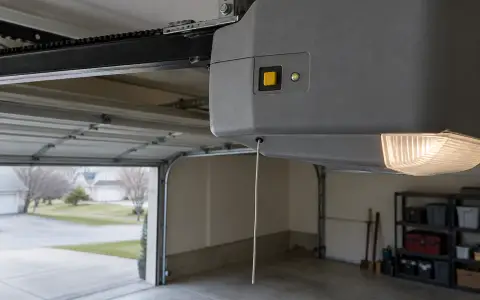 LiftMaster remote
 LiftMaster keypad
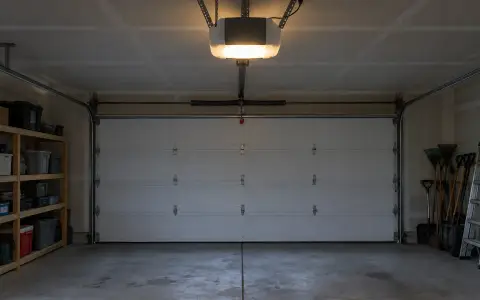 Blinking lights and codes
 Genie remote
 Genie keypad
 HomeLink in the car
 Erase all remotes
 Remote not working
 Craftsman remote and keypad
 Genie blink codes
 Safety sensors
 Travel limits and force
 Universal remote
 Wall button not working
 Maintenance and lubrication
 Emergency release
 Battery backup
 Opener light bulbs